Docs/Summer Upsell/Frequently bought together

Product page widgets

Frequently bought together

PDP

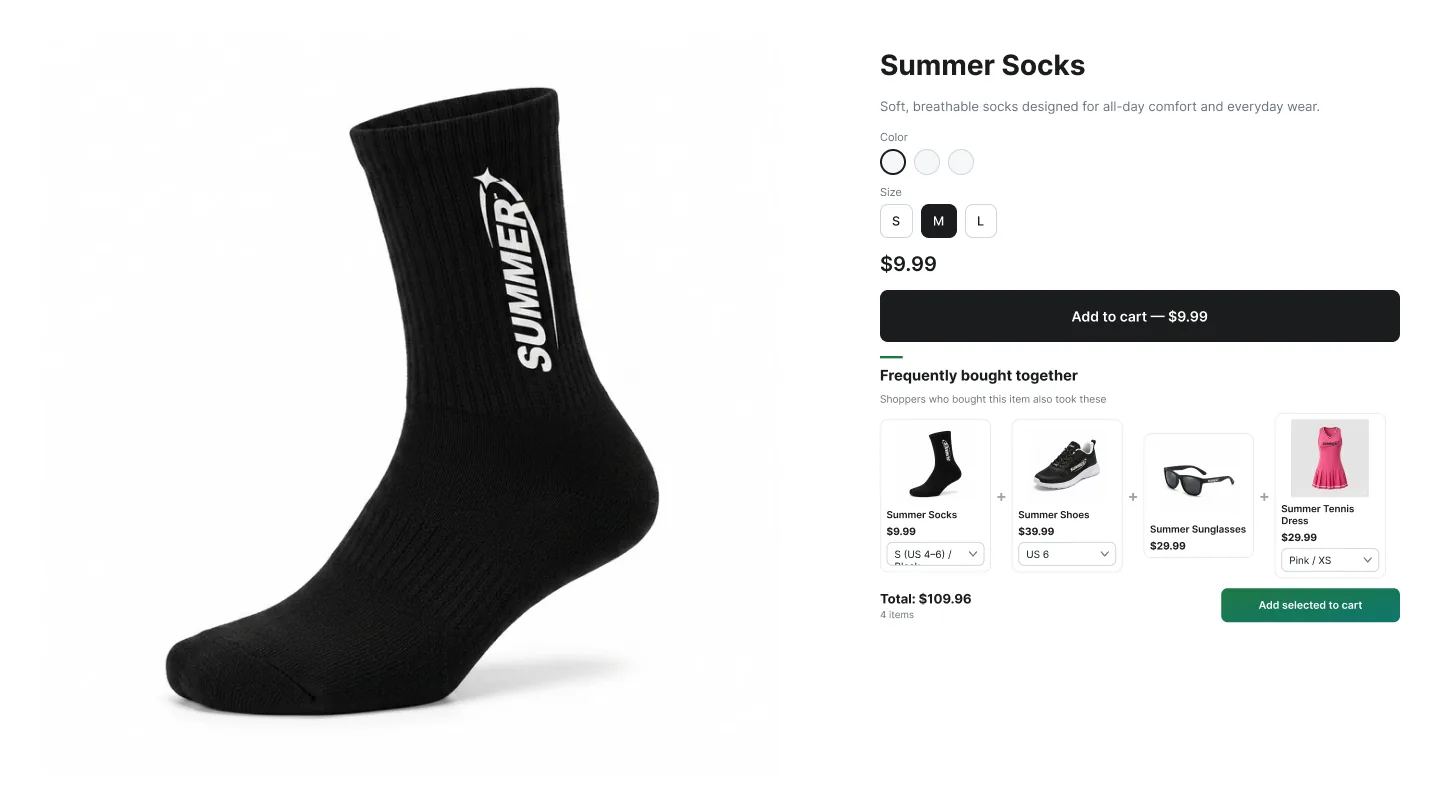
The FBT (Classic) widget pairs the active product with complementary items in a single bundle the customer can add in one click — with an optional all-or-nothing discount applied through Shopify Functions. The customer ticks the items they want, the live total updates, and one Add-to-Cart fires.

Layout

Classic FBT checklist with live bundle total on a product page

Classic FBT

Selectable

Vertical checklist of related products. All items are pre-checked by default. The customer can uncheck any item, the live total updates, and one Add-to-Cart adds everything still selected.

  • Customer controls the bundle composition — no forced adds.
  • Live total price updates as boxes are toggled.
  • Bundle discount recalculates automatically based on the selected subset.
  • Works well in narrow columns and on mobile.

Expected AOV impact: 10–18% AOV lift with selectable items. Conversion is higher than fixed bundles because hesitant buyers can opt into a smaller subset rather than abandoning the whole bundle.

Best for: Add-ons and accessories where each item has its own price tag — and where 'pick the ones you want' converts better than 'take the full kit'.

How to create an FBT campaign

A

In the Summer Upsell admin

  1. 1 In the Summer Upsell admin, click + New campaign.
  2. 2 On the Product Page tab, pick Classic FBT.
  3. 3 Give it an Offer name (e.g. FBT — Coffee starter kit).
  4. 4 Set the Trigger — typically Specific Products for the hero product, or Specific Collections if many products share the same bundle.
  5. 5 Pick the Upsell Source. Manual works best for FBT because the bundle should feel curated.
  6. 6 Add the bundle products (up to 5 items).
  7. 7 Optional: enable Bundle discount — Percentage or Fixed Amount. The discount is applied via Shopify Functions when all required items are in cart.
  8. 8 On the Design tab, set the Widget Title (e.g. Frequently bought together) and pick a preset.
  9. 9 Click Save.
B

In the Shopify theme editor

  1. 1 Open Online Store → Themes → Customize.
  2. 2 Switch to the Products → Default product template.
  3. 3 Click Add block below the product description.
  4. 4 Pick ✨ Summer: FBT Bundle from the Apps section.
  5. 5 Drag to position (most stores place it right below the buy button or after the description).
  6. 6 Click Save.
Field Type Description
Offer name Text Internal label only — used to find the campaign on the dashboard. Customers never see it.
Trigger Type Dropdown All Products, Specific Products, or Specific Collections. Picks where the widget is eligible to render.
Trigger products / collections Picker Shown when the trigger type is specific. Pick the products or collections that should fire the widget.
Upsell Source Dropdown Manual, Basic AI, or Summer AI. See the Upsell sources page for the full breakdown.
Upsell products Picker Shown when source = Manual. Pick the products that the widget will recommend.
Enable discount Toggle Turn on to add an automatic discount to the upsell. Configures a real Shopify Function discount under the hood.
Discount Type / Value Dropdown + number Percentage (%) or Fixed Amount ($). Value is the percentage or money amount.
When to apply? Dropdown Always (on selected products) or Only when trigger product is in cart. Use the second to prevent customers from buying the upsell alone with the discount.

Design tab

Every campaign opens on the Offer tab. The Design tab next to it controls how the widget looks on the storefront. The same set of controls is reused across nearly every widget type, so once you learn it on one campaign the rest are familiar.

Field Type Description
Widget Title Text Heading shown above the widget (e.g. You may also like, Frequently bought together).
Button Text Text Label on every Add / Add to cart button rendered inside the widget.
Color preset Visual picker 20+ ready-made themes: Modern Clean, Ocean Breeze, Sunset Glow, Forest Edge, Royal Velvet, Minimalist, Cherry Blossom, Midnight Sky, Golden Hour, Neon Vibe, Espresso, Arctic Ice, Lava Mary, Lavender Mist, Sandstone, Vintage Ink, Fresh Mint, Bold Crimson, Soft Cloud, Visual Blue, Piggy Pink, Sunset Orange. Pick a preset to fill all color fields below at once, then fine-tune.
Font family Dropdown Your Theme Font (inherits from your theme), Inter, Roboto, Montserrat, Poppins, Playfair Display, Libre Baskerville, Oswald, Plus Jakarta Sans.
Title / Price / Compare / Button font size Number (px) Individual font sizes per element. Set Compare Price Size smaller than Price Font Size for a clean strike-through look.
Button / Title / Price / Compare colors Color picker Override the preset for any single element. Useful when one color needs to match a brand accent.
Border Radius Number (px) Rounding on product cards and CTA buttons. 0 = squared, 12–16 = soft modern, 24+ = pill-shaped.
Card Border Color picker Border color on each product card. Set to transparent or the same as your page background for a flat look.
Image Fit Dropdown Cover (crop to fill), Contain (fit inside, may show whitespace), Fill (stretch to fit).

Tip: Click any color preset to seed every color field at once, then nudge the individual swatches. Faster than building a palette from scratch.

Languages tab

If your shop runs multiple locales, the Languages tab lets you override Widget Title and Button Text per locale. Six locales ship out of the box: English, Spanish, French, Arabic, Turkish, Russian. Anything you leave blank falls back to the campaign default from the Design tab.

Selectable bundle items

Customers can uncheck any product in the Classic layout before adding to cart. The discount automatically recalculates based on the selected subset.

Discount logic

FBT discounts are conditional: the discount only applies if all required bundle items are in cart at checkout. Customers see the savings live as they tick boxes, so the value of the bundle is visible before they commit.