Docs/Summer Upsell/Popup upsell

Product page widgets

Popup upsell

Add-to-cart

The Popup Upsell opens right after a shopper adds a trigger product to the cart from the product page. It catches them at peak buying intent — a few seconds before they move on — and offers a relevant follow-up purchase as a focused overlay.

Three layouts cover three angles: a list of recommendations with individual Add buttons (Cross-sell), a curated mini-bundle (FBT), or a multi-select add-on list (Add-ons). All three open from the same Add to cart event.

Layouts
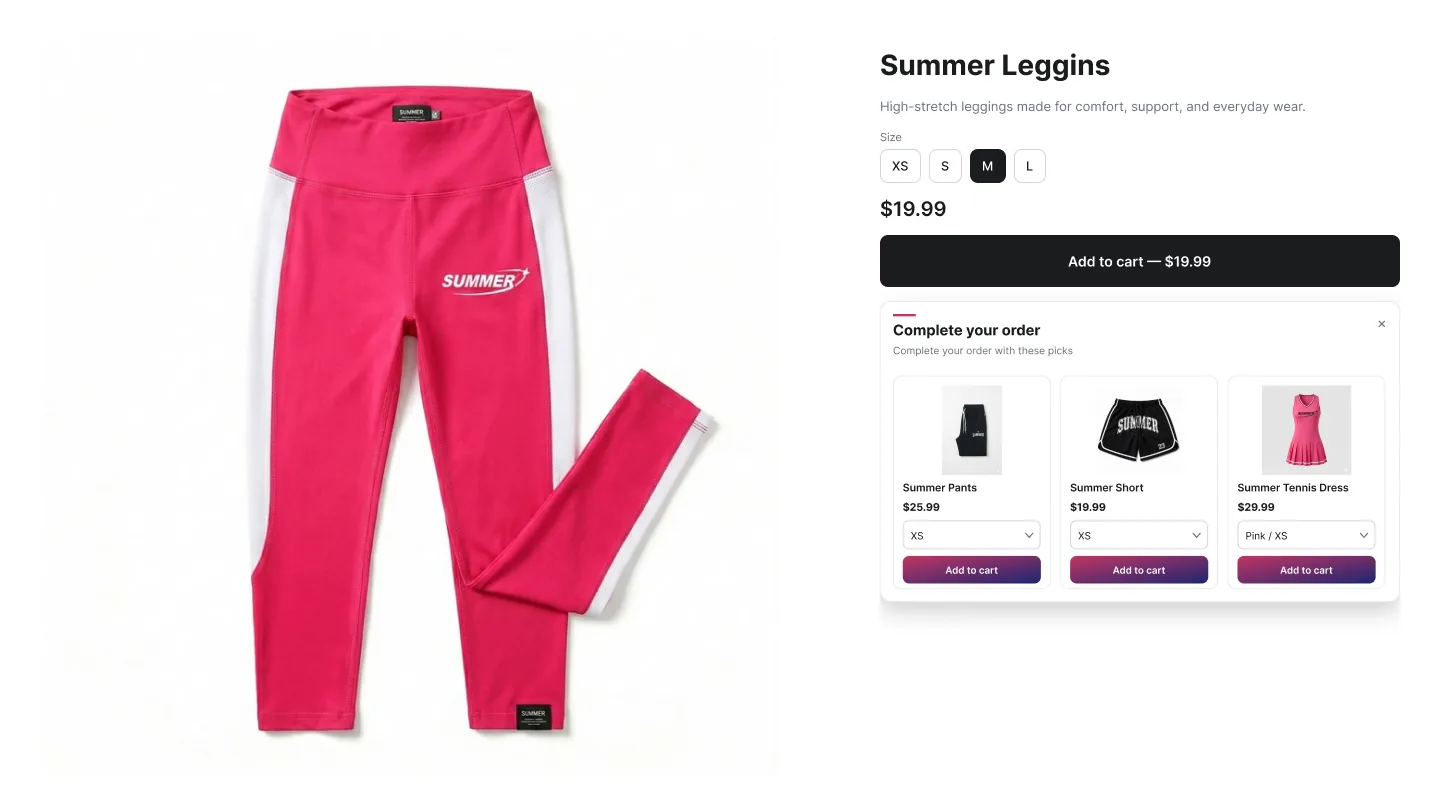
Cross-sell popup opening after Add to cart on a product page

Cross-sell Popup

Individual add

Opens after Add to cart with your recommended products, each with its own variant picker and Add button, plus a Continue shopping link to close it.

  • Captures attention at peak buying intent — the moment after a successful Add to cart.
  • Every product can be added on its own — no bundle commitment.
  • The shopper can dismiss without losing the cart.

Best for: Stores with a few accessories or premium variants that pair with most products.

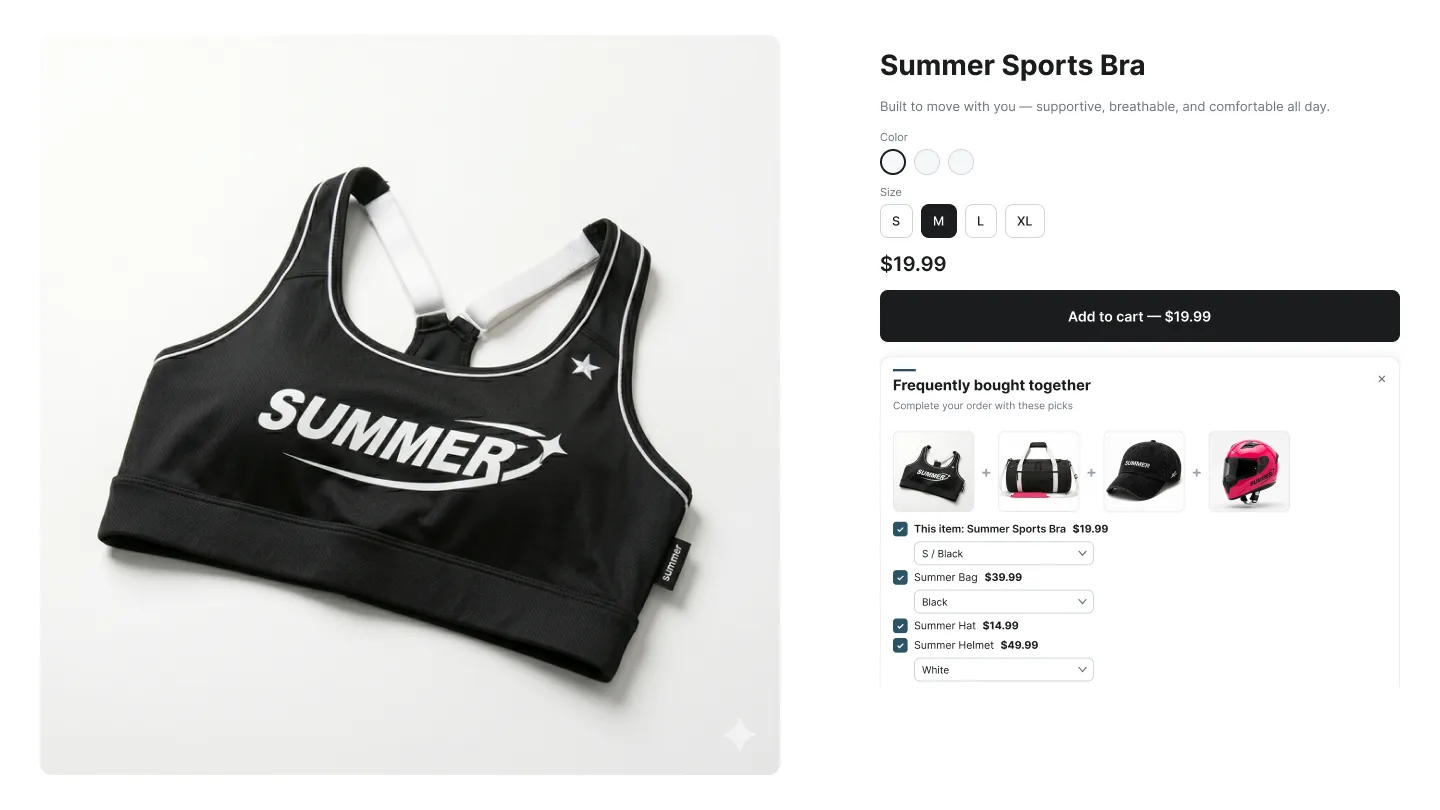
FBT popup with checkboxes and a live bundle total

FBT Popup

Bundle

Popup version of FBT — the product just added (labelled This item) and the recommended items shown together with checkboxes, all pre-checked, a live total and a single Add button.

  • Bundle psychology in a focused overlay — no product page layout changes needed.
  • Live total updates as the shopper ticks boxes; the discount is shown on the added products.
  • Optional automatic discount applied at checkout.

Best for: Categories with strong complementary pairings (skincare routines, camera + lens + bag, appliances + accessories).

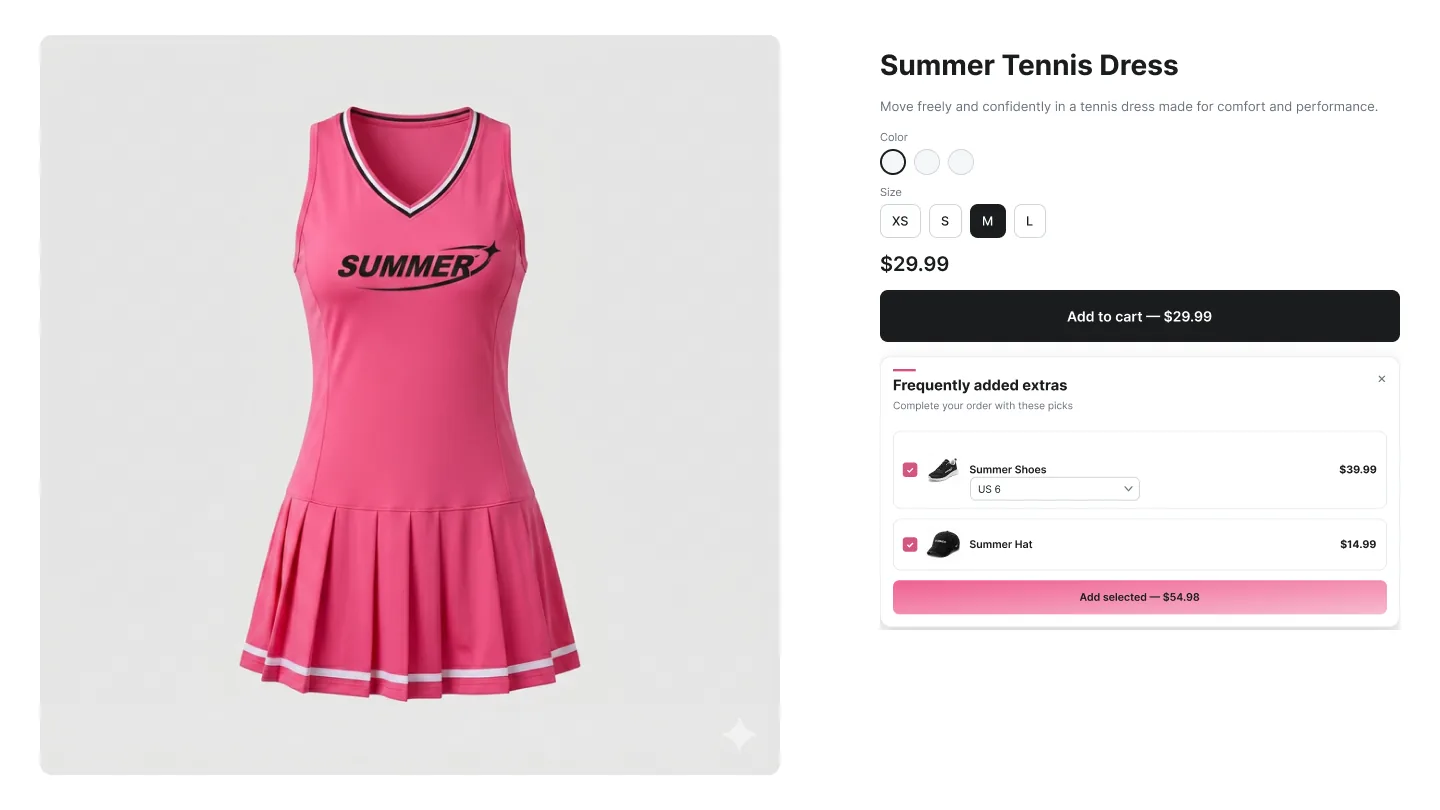
Add-ons popup offering warranty and gift-wrap style extras

Add-ons Popup

Multi-select

Checkbox list of add-on products shown after Add to cart — typically warranty, gift wrap, samples. The first add-on is pre-checked; one click adds every ticked item.

  • Perfect for accessories, protection plans and small-ticket extras.
  • Multi-select via checkboxes — adds several items in a single click.
  • The shopper adds extras without leaving the page.

Best for: Hard goods, apparel, electronics — anywhere small extras are commonly forgotten.

How to create a Popup campaign

A

In the Summer Upsell admin

  1. 1 Click Create Campaign.
  2. 2 Under Popup on the Product Page list, pick Cross-sell Popup, FBT Popup or Add-ons Popup. You can switch between the three at the top of the editor.
  3. 3 Offer tab: name, trigger, product source, offer products.
  4. 4 Optional: tick Enable discount on offer products.
  5. 5 Design tab: template, Widget Title (default Complete your order), Button Text, and the desktop Position (nine positions from top-left to bottom-right; on phones the popup is always a bottom sheet).
  6. 6 Language tab if you need translations.
  7. 7 Click Publish. The Test campaign in store checklist runs (campaign active, products available, app embed enabled, widget block added) — fix anything red, then click Publish campaign.
B

In the Shopify theme editor

  1. 1 Open Online Store → Themes → Customize.
  2. 2 Switch to the Products → Default product template.
  3. 3 Click Add block anywhere in the product section — position doesn't matter, the block is an invisible container and the popup is an overlay.
  4. 4 Pick ✨ Summer: Popup Upsell from the Apps section.
  5. 5 Click Save. The popup opens the next time a shopper adds a trigger product to the cart.
Field Type Description
Offer name Text Internal label only — used to find the campaign in the admin. Customers never see it.
Trigger Radio All products, Specific products (default) or Specific collections. Decides where the widget is eligible to render. Cart widgets use Any cart and Post-Purchase uses Any order instead of All products.
Trigger products / collections Picker Shown for the Specific options. Pick the products or collections that should fire the widget.
Product source Radio Specific products, Automated recommendations or Summer AI powered by ChatGPT (credit-based; every plan includes credits). See Upsell sources.
Offer products Picker Shown when Specific products is selected — click Add Products and pick the products the widget will recommend.
Discounts Dropdown No discount, Use Summer Upsell discount functions (Recommended), Use discounts that are dynamically created or Use an already existing discount code. See Discounts for how each mode works.
Type / Value Dropdown + number Product discount (each offer item) or Order discount (the whole order), and the amount as % or a fixed amount in your store currency.
Discount code Text Optional for Summer discount functions (creates a code-based discount the widget applies automatically); required for existing discount code.
Combination Checkboxes Whether the discount can combine with product, order and shipping discounts.

Design tab

Every campaign opens on the Offer tab. The Design tab next to it controls how the widget looks on the storefront. The same set of controls is reused across nearly every widget type, so once you learn it on one campaign the rest are familiar. A live preview on the right updates as you change settings — switch it between desktop, mobile and full size.

Field Type Description
Layout Dropdown Shown on widgets that have more than one layout (Cross-sell, Upsell, In-Cart Upsell, Product Add-on). Switches the layout without recreating the campaign.
Widget Title / Button Text Text Heading shown above the widget and the label on its Add buttons. For Classic FBT, Bundle, Popup, In-Cart Upsell, Cart Popup and Post-Purchase you set them here; for Upsell, Cross-sell, FBT Full Width and Product Add-on they live on the Language tab (default language block).
Subtitle Text Optional line under the title (e.g. Customers also bought these).
Templates Visual picker 27 ready-made themes: Modern Clean, Ink → Slate, Slate → Ocean, Espresso → Sunset, Blossom → Crimson, Teal → Ocean, Forest → Teal, Ocean → Glacier, Sunset → Crimson, Lilac → Denim, Cherry Blossom, Piggy Pink, Fresh Mint, Baby Blue, Sand, Lavender, Honey → Amber, Vanilla → Cream, Royal → Violet, Sunset Orange, Moonlit Asteroid, Amin, Celestial, Witching Hour, Frost, Quepal and Sublime Light. Picking a template sets the button style, card border and every color below at once — then fine-tune anything you want.
Background (optional) Toggle + color Give the widget its own background color instead of inheriting the page background.
Border Radius Dropdown Sharp (Square) or Curvy (Rounded) corners on cards and buttons.
Image Fit Dropdown Cover (crop to fill), Contain (fit inside, may show whitespace), Fill (stretch to fit).
Font family Dropdown Your Theme Font (inherits from your theme), Inter, Roboto, Montserrat, Poppins, Playfair Display, Libre Baskerville, Oswald, Plus Jakarta Sans.
Typography sizes Number (px) Title weight, Button font size, and individual sizes for Product Title, Price and Compare price. Set the compare size smaller than the price size for a clean strike-through look.
Colors Color picker Primary color, Product Title color, Price color and Compare price color. Override any single value after picking a template.

Tip: Click any template to seed every color at once, then nudge the individual swatches. Faster than building a palette from scratch.

Language tab

The Language tab holds the storefront copy for the widget. The Default language block is always there; click Add another language to add any locale your Shopify store has published and translate the title, button text and other storefront strings for it. Default text is pre-filled in English, Spanish, French, Arabic, Turkish and German. A locale you don't add falls back to the default language.

How it differs from Cart Popup

The Popup Upsell opens on Add to cart on a product page. The Cart Popup opens on the Checkout click on the cart page or drawer. Both share the same three layouts but target different moments in the funnel.

When it opens

The popup opens every time a trigger product is added to the cart through your theme's Add to cart button. Products added from inside a Summer widget don't trigger it, and it never opens on top of another Summer popup.