Product page widgets
Product add-on
The Product Add-on widget renders inline on the product page and is purpose-built for low-friction extras the shopper would otherwise forget — warranty, gift wrap, samples, engraving. It shows the current product on top under a Customize your order heading, the add-ons below it, and its own Add button with the running total that adds the product plus every ticked add-on in one go.
Layouts
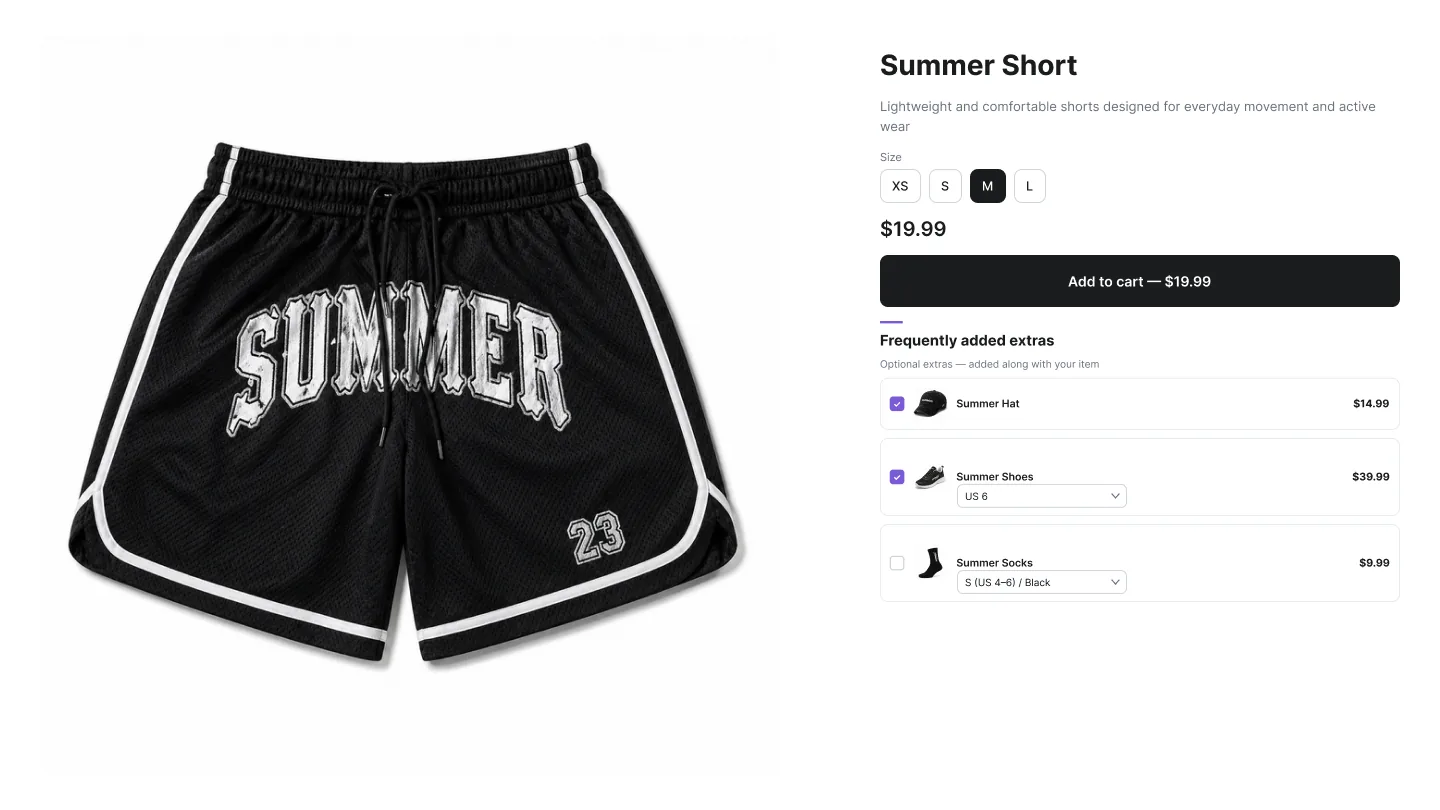
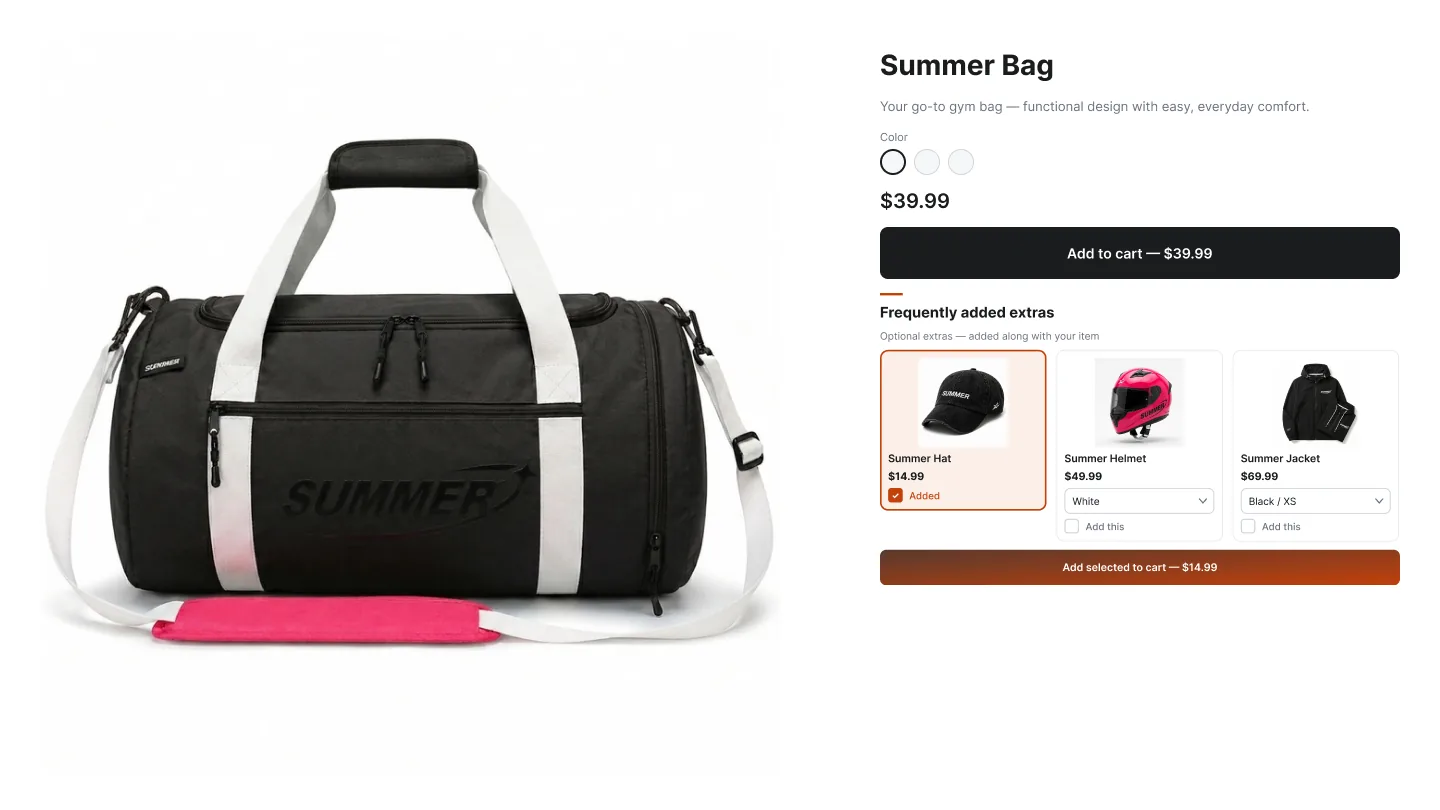
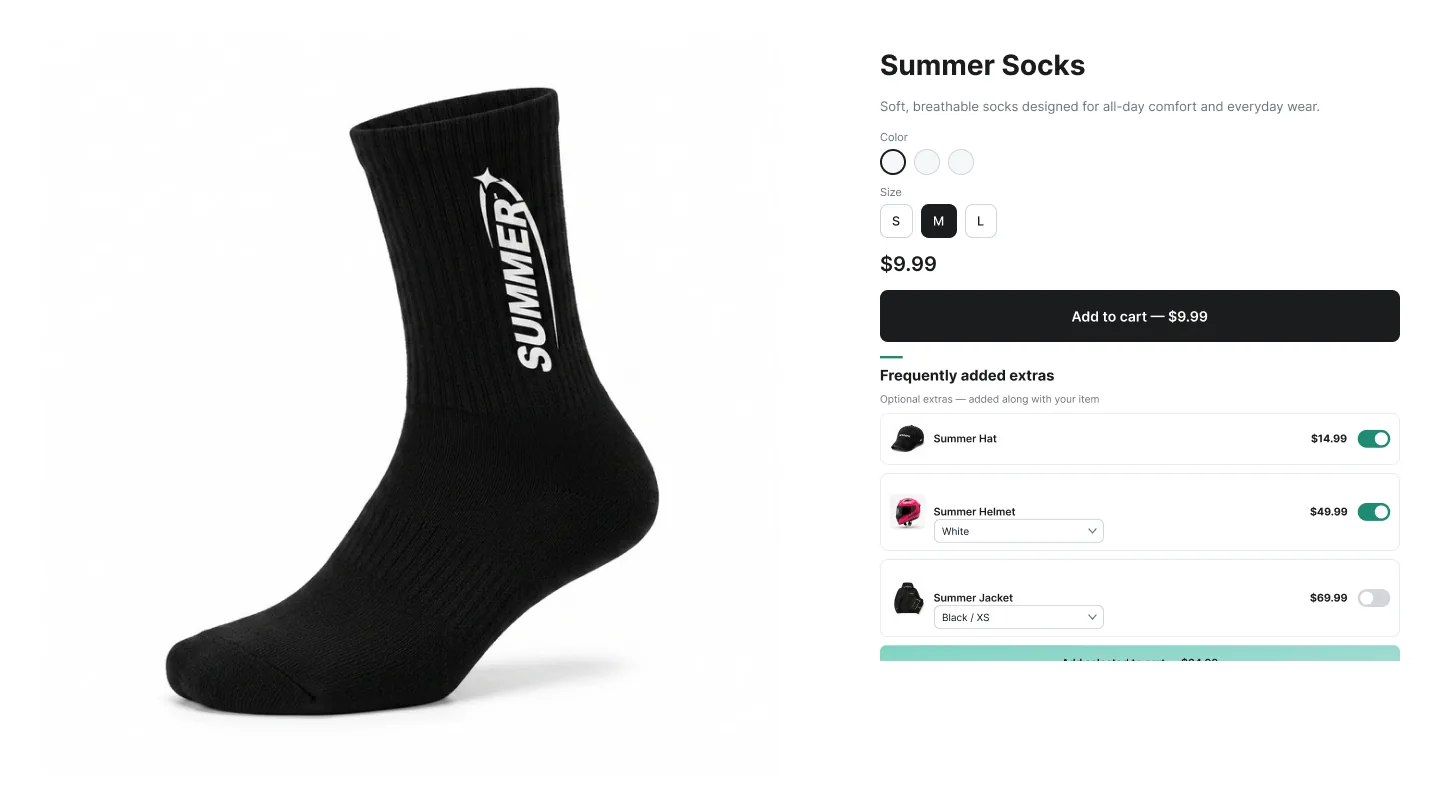
How to create a Product Add-on campaign
In the Summer Upsell admin
- 1 Click Create Campaign.
- 2 Under Product Add-on on the Product Page list, pick List layout, Card layout or Toggle layout.
- 3 Offer name + Trigger (Specific products / Specific collections work best — add-ons should feel relevant).
- 4 Pick the add-on products (or use Automated recommendations / Summer AI). Each add-on is a real Shopify product — gift wrap, warranty etc. should already exist as products.
- 5 Optional: tick Enable discount for add-on products and set the display title, type and value.
- 6 Design tab: layout, template, Subtitle, typography.
- 7 Language tab: Widget Title (default Frequently added extras), Button Text, translations.
- 8 Click Publish. The Test campaign in store checklist runs (campaign active, products available, app embed enabled, widget block added) — fix anything red, then click Publish campaign.
In the Shopify theme editor
- 1 Open Online Store → Themes → Customize.
- 2 Switch to the Products → Default product template.
- 3 Click Add block near the buy button (Product Add-on widgets convert best when they're directly next to Add to cart).
- 4 Pick ✨ Summer: Product Add-on from the Apps section.
- 5 Drag to position.
- 6 Click Save.
Design tab
Every campaign opens on the Offer tab. The Design tab next to it controls how the widget looks on the storefront. The same set of controls is reused across nearly every widget type, so once you learn it on one campaign the rest are familiar. A live preview on the right updates as you change settings — switch it between desktop, mobile and full size.
Tip: Click any template to seed every color at once, then nudge the individual swatches. Faster than building a palette from scratch.
Language tab
The Language tab holds the storefront copy for the widget. The Default language block is always there; click Add another language to add any locale your Shopify store has published and translate the title, button text and other storefront strings for it. Default text is pre-filled in English, Spanish, French, Arabic, Turkish and German. A locale you don't add falls back to the default language.
Tip: Create your add-on products as real Shopify products with inventory tracking off — warranties, gift wrap, samples, etc. They appear in your admin like normal products but never deduct from physical stock.