Product page widgets
FBT — Full Width
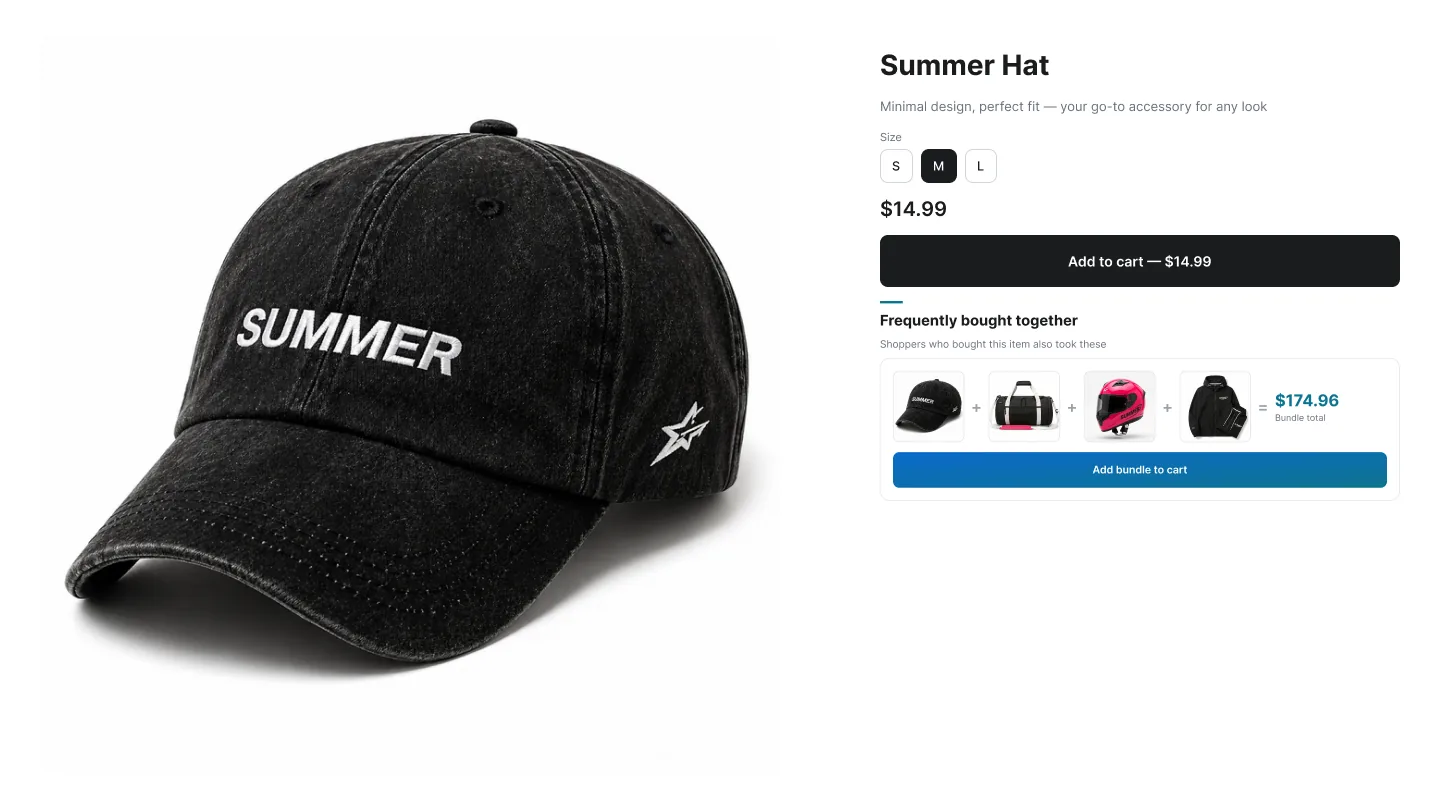
The FBT Full Width widget is the editorial cousin of Classic FBT. Instead of a vertical checklist, it spreads the recommended products across the full content width as a card carousel — closer to the way premium retailers show "shop the look" or "complete the set" recommendations.
Layout
How to create an FBT Full Width campaign
In the Summer Upsell admin
- 1 Click Create Campaign.
- 2 Under Frequently Bought Together on the Product Page list, pick Frequently Bought Together (Full Width).
- 3 Offer tab: name the campaign, set the Trigger, pick the Product source.
- 4 Add the products. The first 4 are visible on desktop without scrolling.
- 5 Optional: tick Enable discount for bundle products, set the Discount Display Title (e.g. Bundle savings), type and value.
- 6 Design tab: pick a template, set the Subtitle, tweak typography.
- 7 Language tab: set the Widget Title (e.g. Style the look) and Button Text, plus translations if needed.
- 8 Click Publish. The Test campaign in store checklist runs (campaign active, products available, app embed enabled, widget block added) — fix anything red, then click Publish campaign.
In the Shopify theme editor
- 1 Open Online Store → Themes → Customize.
- 2 Switch to the Products → Default product template.
- 3 Click Add block below the main product section.
- 4 Pick ✨ Summer: FBT FullWidth from the Apps section.
- 5 Drag to position — full-width layouts read best below the product description, before reviews / FAQs.
- 6 Click Save.
Design tab
Every campaign opens on the Offer tab. The Design tab next to it controls how the widget looks on the storefront. The same set of controls is reused across nearly every widget type, so once you learn it on one campaign the rest are familiar. A live preview on the right updates as you change settings — switch it between desktop, mobile and full size.
Tip: Click any template to seed every color at once, then nudge the individual swatches. Faster than building a palette from scratch.
Language tab
The Language tab holds the storefront copy for the widget. The Default language block is always there; click Add another language to add any locale your Shopify store has published and translate the title, button text and other storefront strings for it. Default text is pre-filled in English, Spanish, French, Arabic, Turkish and German. A locale you don't add falls back to the default language.
Tip: Image Fit = Cover gives this layout an editorial feel. Pair it with Curvy corners and your theme font for a native look.